Irth Mobile App Overview
Purpose/Overview
In this article, you will learn about the Irth Mobile App and the features available for managing assigned tickets and work items from a mobile device. The redesigned application helps field users streamline daily workflows by reducing clicks, improving mobile syncing and photo capture, and refining mapping capabilities.
The mobile app allows users to review assigned tasks, search and filter tickets and work items, view item details, add notes and attachments, respond to tickets, create or modify work items, and complete other common field actions. The app is available for Android and iOS devices.
Navigation Path:
To access this feature, download: UtiliSphere Mobile App
Things to Know:
- The Irth Mobile App is available for Android and iOS devices and can be installed from the corresponding app store.
- You must sign in using your Irth username and password and select the appropriate production or sandbox environment.
- The production environment is the live environment used for operational work. The sandbox environment is isolated from production and can be used for testing and experimentation.
- Tickets and work items assigned to you are synchronized when you sign in. Workable items display on the Tasks screen after synchronization is complete.
- Task filters are based on your organization’s configuration. For example, organizations that only use work items may not see a Tickets filter.
- Available forms, fields, attachments, and actions may vary according to your mobile profile and company configuration.
- When you work without service, tasks are placed in the Outbox. The app pushes those tasks to the server when your device returns to an area with service.
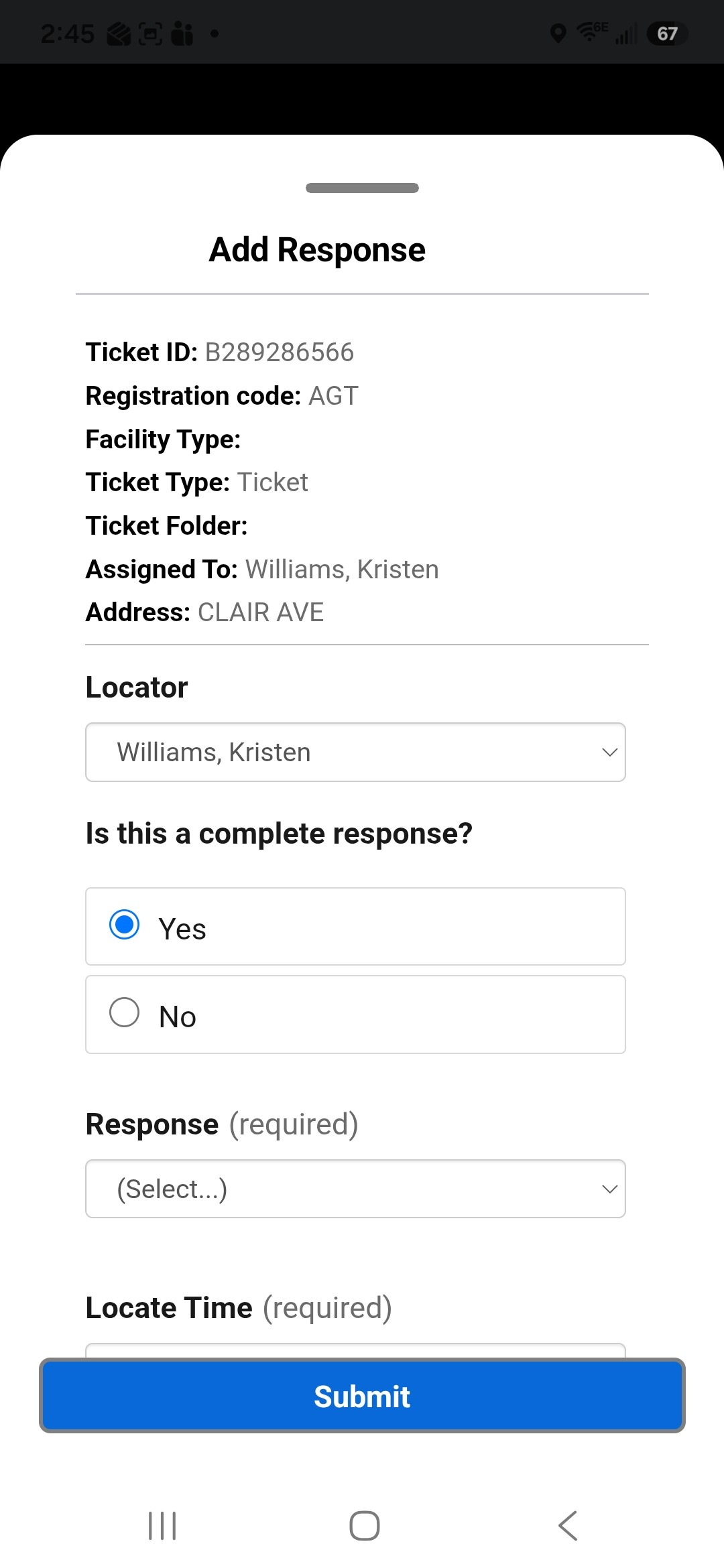
- Required form fields are identified by an asterisk.
Key Benefits/Use Cases:
- Manage Assigned Field Tasks: View assigned tickets and work items together on the Task Summary screen, helping you manage daily work from one location.
- Locate and Prioritize Work: Use location-based search, maps, filters, and sorting options to find and organize the items you need to complete.
- Complete Work in the Field: Respond to tickets, create or modify work items, add comments and attachments, take photos, obtain directions, and perform other available actions from a mobile device.
- Continue Working Offline: Place completed tasks in the Outbox while offline and send them to the server after service is restored.
- Review Complete Item Information: Use the Summary, Details, Notes, Attachments, Related Items, and History tabs to review information associated with a selected ticket or work item.
How It Works:
Follow these steps to set up:
- Download and install the Irth Mobile App from the appropriate Android or iOS app store.
- Launch the app and enter your Irth username, password, and choose your environment. Then choose the appropriate log in button for your company.
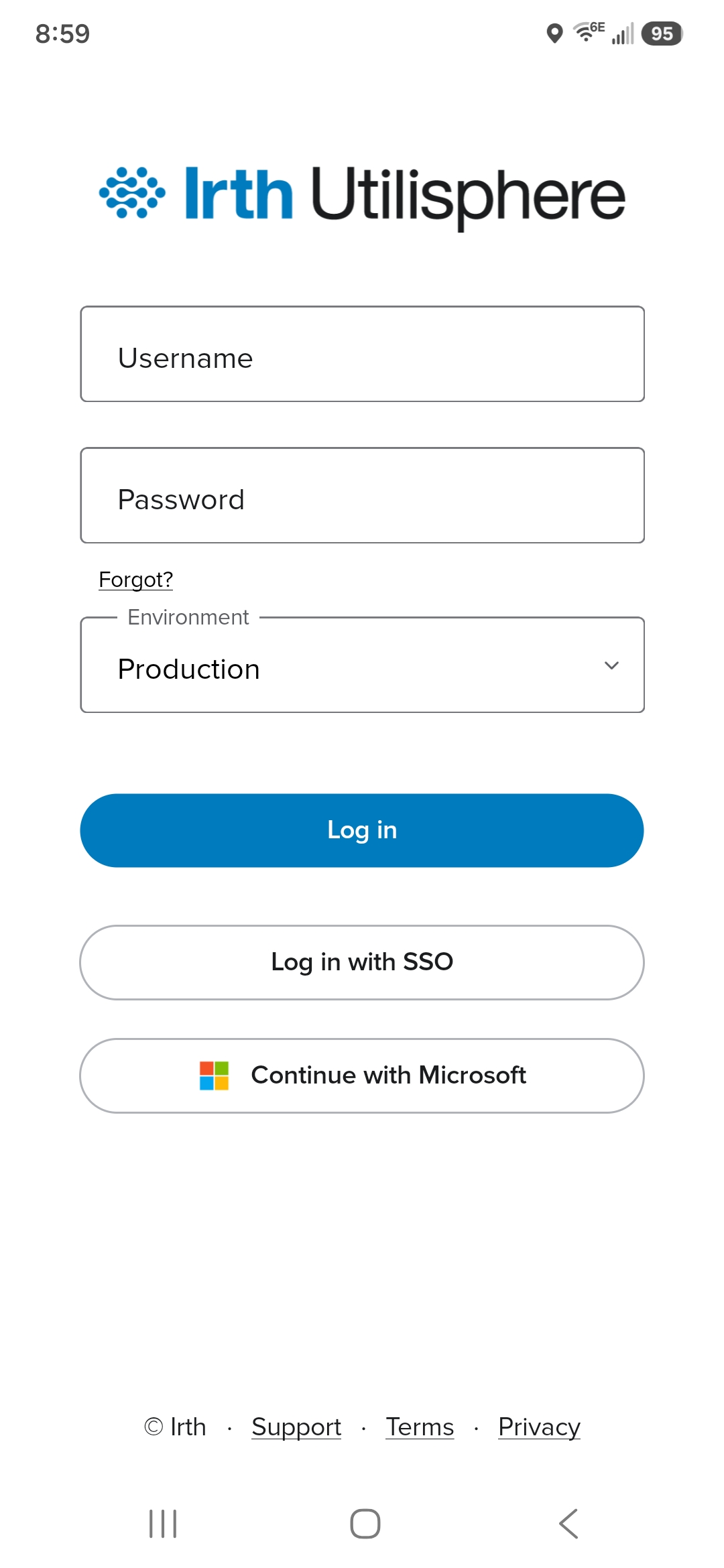
- Allow the Initial Sync to Complete. The app synchronizes the tickets and work items assigned to you. Workable items appear on the Tasks screen after synchronization is complete.
- Tickets and work items appear together on the Task Summary screen. Tickets use a dark blue icon, while work items use a teal icon.
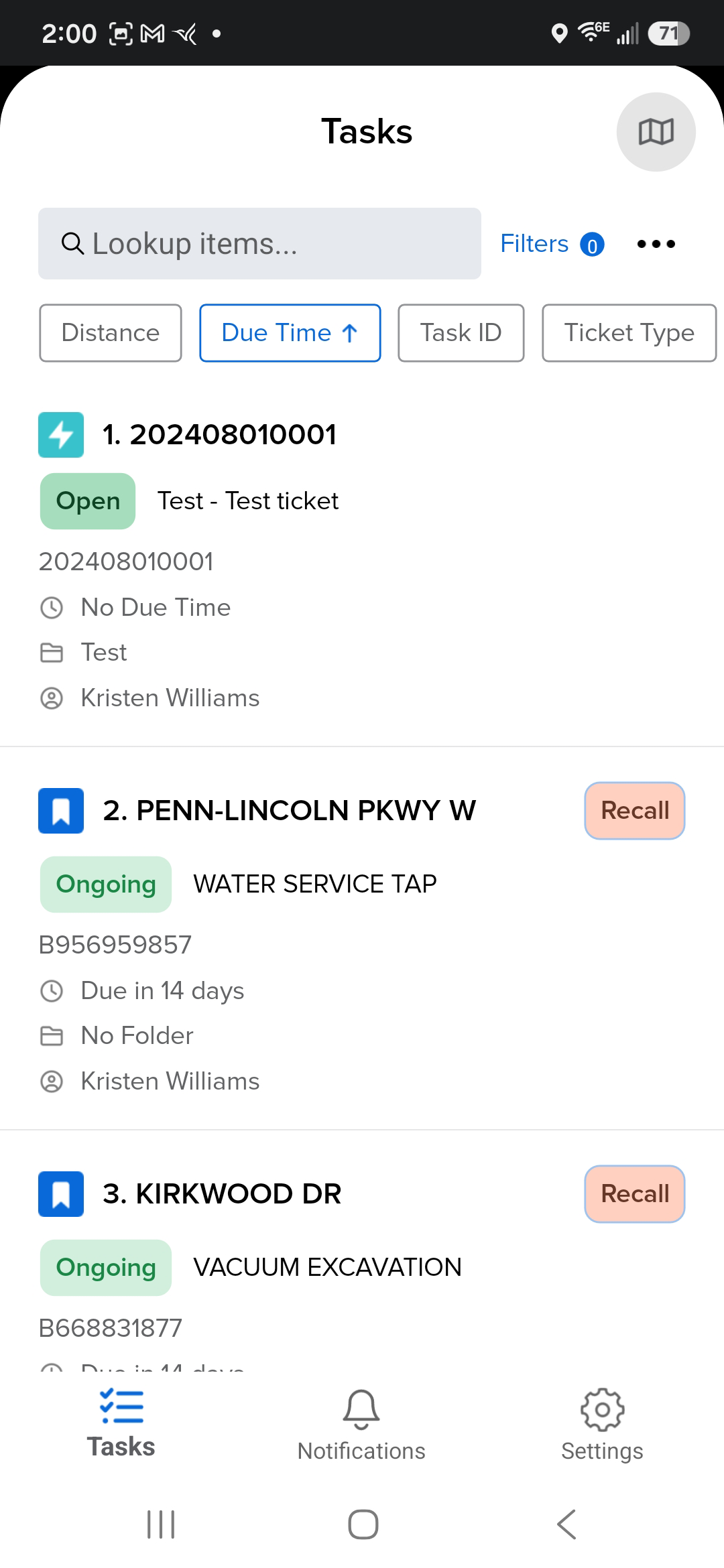
- Select a ticket or work item to view its unique ID and other available details. Use the caret to switch between the map-and-information view and the information-only view.
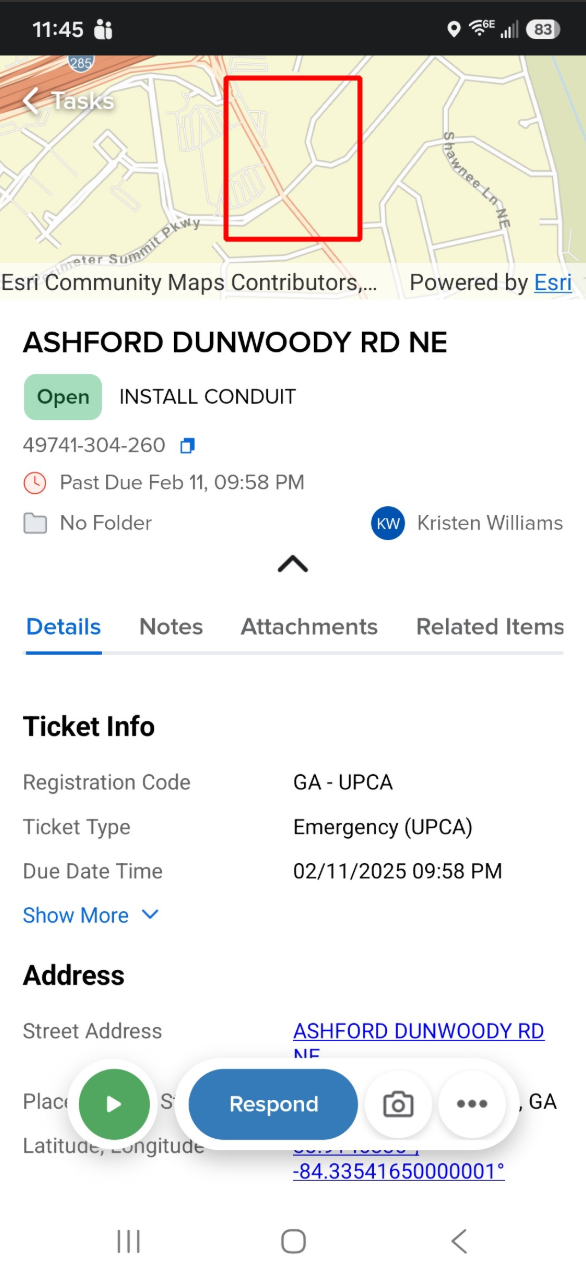
- Use the available tabs (swipe right to view all the tabs) to review details, notes, attachments, related items, and history.
- Open the action bar to access available actions, such as responding to a ticket, taking photos, adding a comment, creating a work item, sharing, getting directions, reassigning, or moving the ticket.
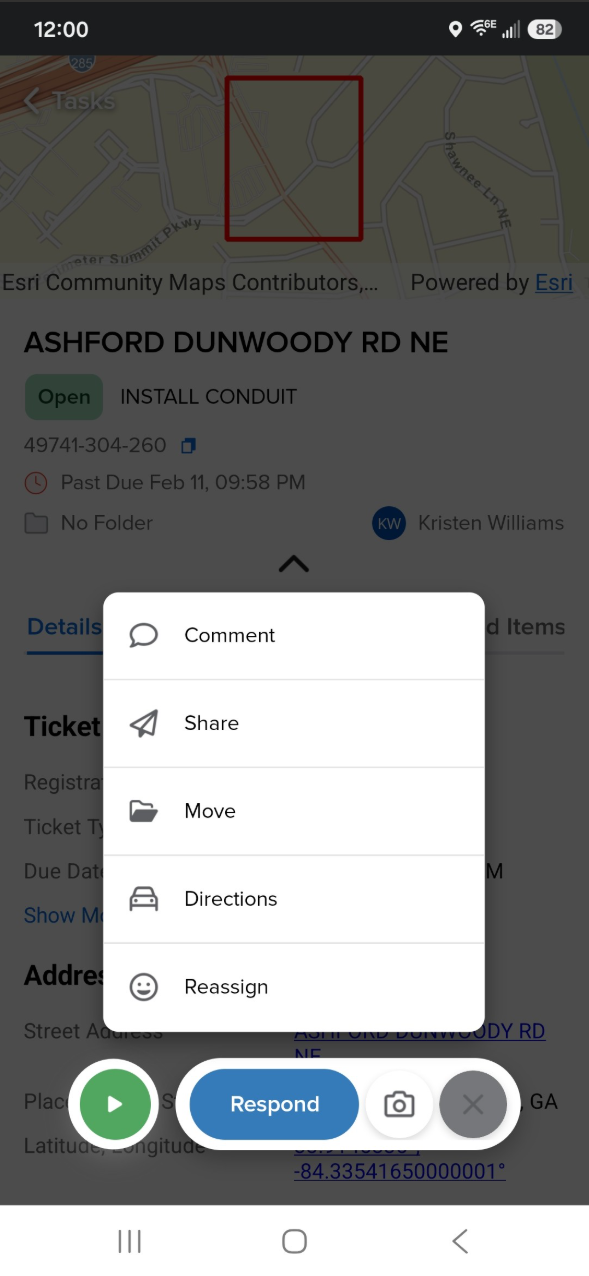
- Select Respond, complete the required response fields, and select Submit.
Related Features/Next Steps:
- Irth Mobile for Administrators (Irth Training)
- Irth Mobile for Users (Irth Training)
FAQ/Troubleshooting:
Q: What happens to my tasks when I am offline?
A: Tasks completed while offline are placed in the Outbox. When your device returns to an area with service, the app pushes those tasks to the server.
Q: Why are some actions or attachment options unavailable?
A: Available actions, forms, and attachment options may depend on your organization’s configuration and the mobile profile assigned to you.
Questions? Contact us!

Was this article helpful?
That’s Great!
Thank you for your feedback
Sorry! We couldn't be helpful
Thank you for your feedback
Feedback sent
We appreciate your effort and will try to fix the article