Registration Code Details
Purpose/Overview
In this article, you’ll learn how to view and manage Registration Codes within Utilisphere. Registration codes are unique identifiers assigned to your company by the One Call Center. They play a critical role in ensuring that tickets are routed to the correct company, department, or geographic area.
Each registration code can represent:
A company or subsidiary
A specific geographic area (e.g., county, right of way, or land parcel)
An asset (e.g., section of pipeline, tower, or utility network)
When a ticket is received from a One Call Center, the system uses the registration code to deliver the ticket to the appropriate company or division.
Also Known As:
Registration codes may be referred to as CDC codes, Markout codes, Member codes, or Terminal codes depending on your organization or One Call Center.
Navigation Path:
To access this feature: Utilisphere > System Management > Ticket Management > Registration
Things to Know:
- Permissions: Access may be limited to system administrators or users with registration management rights.
- Integration: Registration codes are managed through your One Call Center. Some configurations (like positive responses) depend on One Call Center support.
- Naming Conventions: Each code must match the naming format provided by the One Call Center.
- Variations: Some One Call Centers support additional options (e.g., comments or attachments in responses), while others do not.
Key Benefits/Use Cases:
- Accurate Ticket Routing: Ensures tickets are sent to the correct company, department, or service area.
- Improved Efficiency: Reduces manual ticket management by linking codes to areas, assets, or members.
- Streamlined Billing & Reporting: Supports bill rates and response configurations for transparent accounting and performance tracking.
How It Works:
View and Manage Registration Codes
Navigate to System Management > Ticket Management > Registration.
On the Registration Summary page, select the desired registration code.
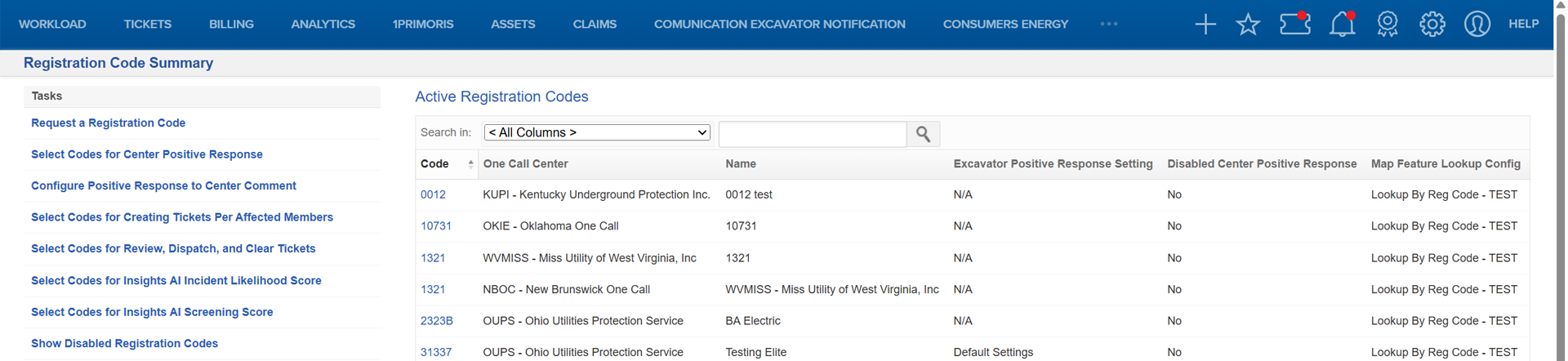
From the Registration Code Detail page, you can configure or view various options related to that code.
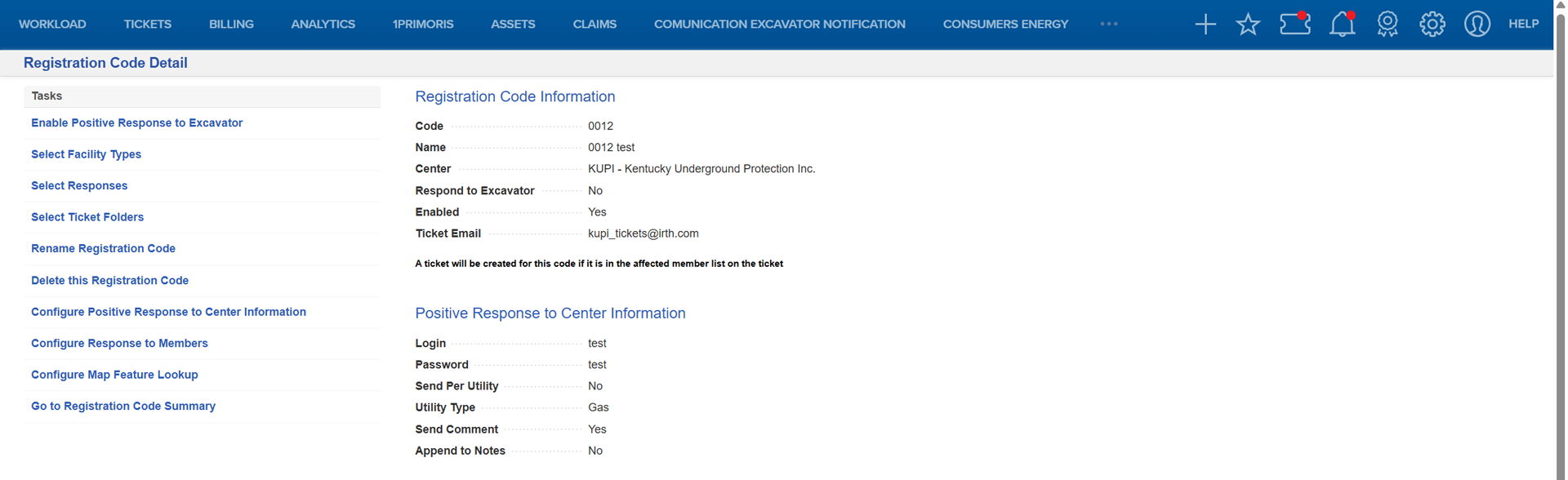
NOTE:
Append to Notes controls whether the comment sent as part of a Positive Response to Center is also saved to the ticket's Center Comments/Notes history within Utilisphere. It does not control whether the comment is sent to the One Call Center — that's determined by the Send Comment setting.
Related Features/Next Steps:
FAQ/Troubleshooting:
Q: Why don’t I see certain configuration options?
A: Access to registration settings may depend on your user permissions or your One Call Center’s supported features.
Q: What if my positive responses are not sending correctly?
A: Verify your authentication code and device configuration, or contact your One Call Center to confirm they support the required response settings.
Questions? Contact us!

Was this article helpful?
That’s Great!
Thank you for your feedback
Sorry! We couldn't be helpful
Thank you for your feedback
Feedback sent
We appreciate your effort and will try to fix the article