Exports
Purpose/Overview
In this article, you’ll learn how to create, request, and download exports in UtiliSphere. The Exports feature allows you to extract ticket and work item data from the system in various formats, making it easier to analyze information, create reports, support audits, share data with stakeholders, and maintain records outside the application.
Exports are designed for users who need access to large volumes of ticket or work item data. The feature provides flexible filtering options, customizable export fields, and multiple output formats to support different operational and reporting needs.
Navigation Path:
To access this feature, go to: Analytics > Exports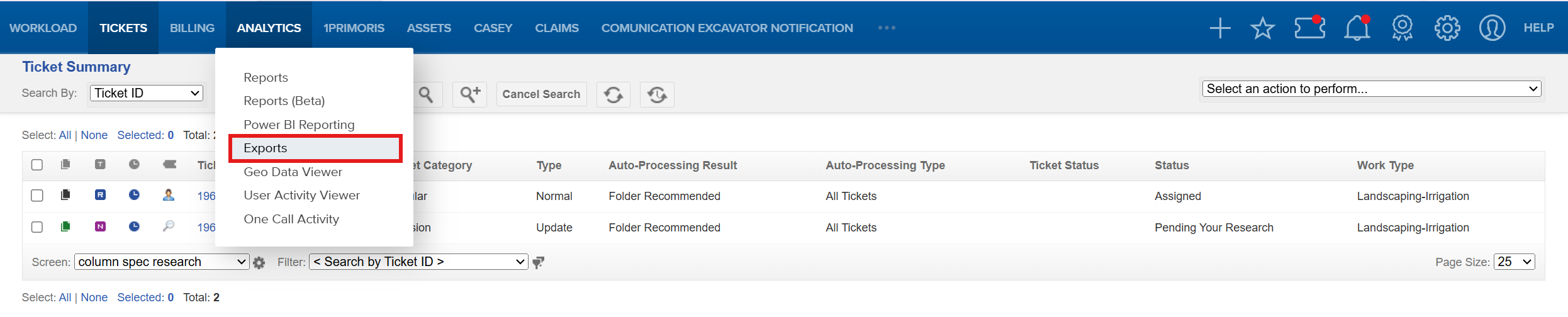
The Exports page displays all available exports in a table format. Click any column header to sort the list in ascending or descending order.
Things to Know:
- Access to exports may be limited based on your user permissions and role configuration.
- Available export formats may vary by company configuration and system setup.
- Large exports may remain in a Queued status while the system processes the request.
- Historical exports retrieve data from the data warehouse, while Standard exports retrieve data from the production system.
- Export files can be downloaded only after the status changes to Ready.
Key Benefits/Use Cases:
- Compliance and Auditing: Export ticket history, assignments, responses, and audit information to support regulatory requirements and internal reviews.
- Operational Management: Retrieve filtered ticket and work item data to measure team performance, monitor workloads, and support business decision-making.
How It Works:
Follow these steps to create and download an export:
- Go to Analytics > Exports.
- Select Request an Export.

- Choose the appropriate export type, such as a Standard or Historical export, based on the data you need.
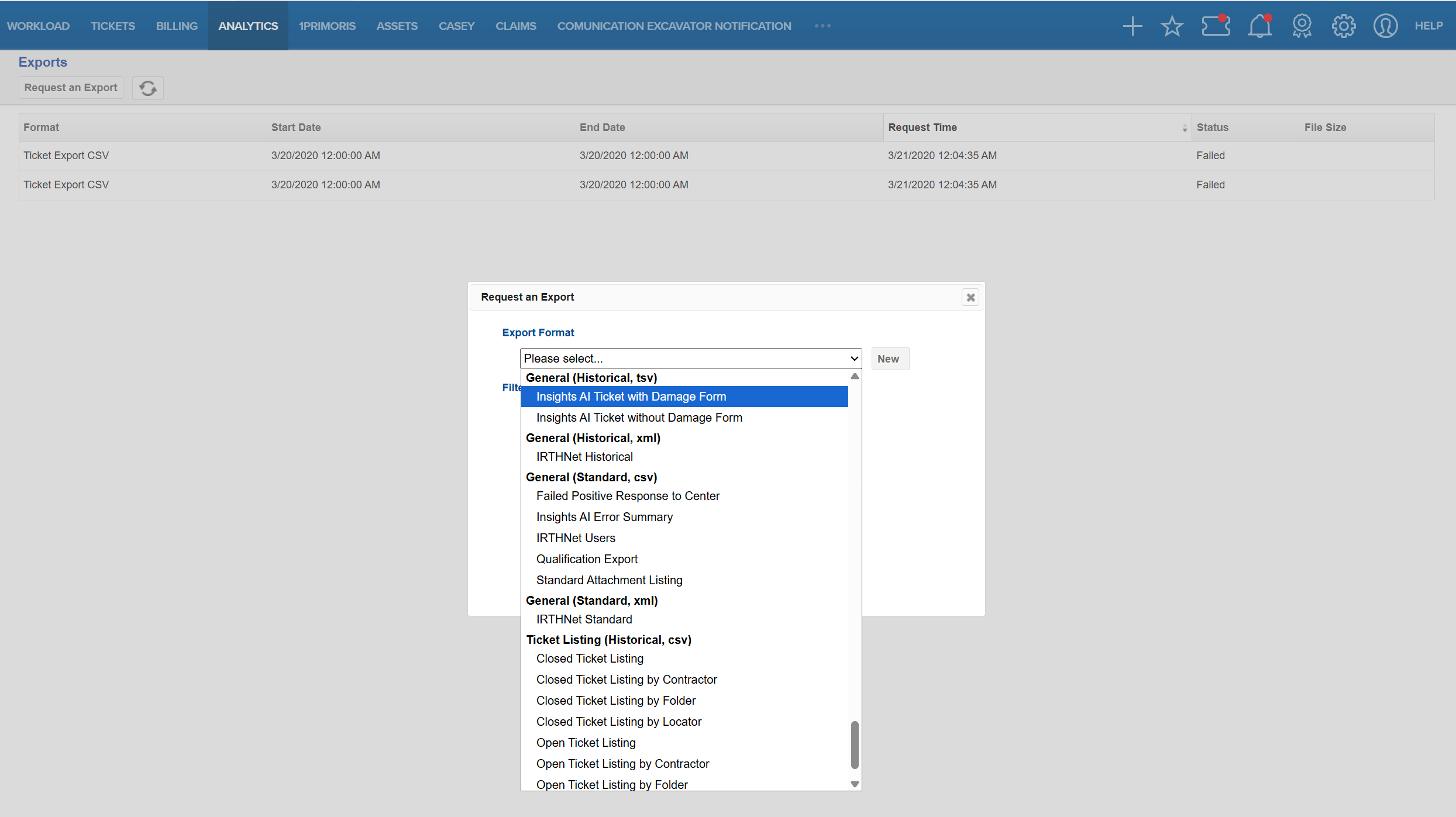
- Configure the export options, including the desired date range and any additional available settings.
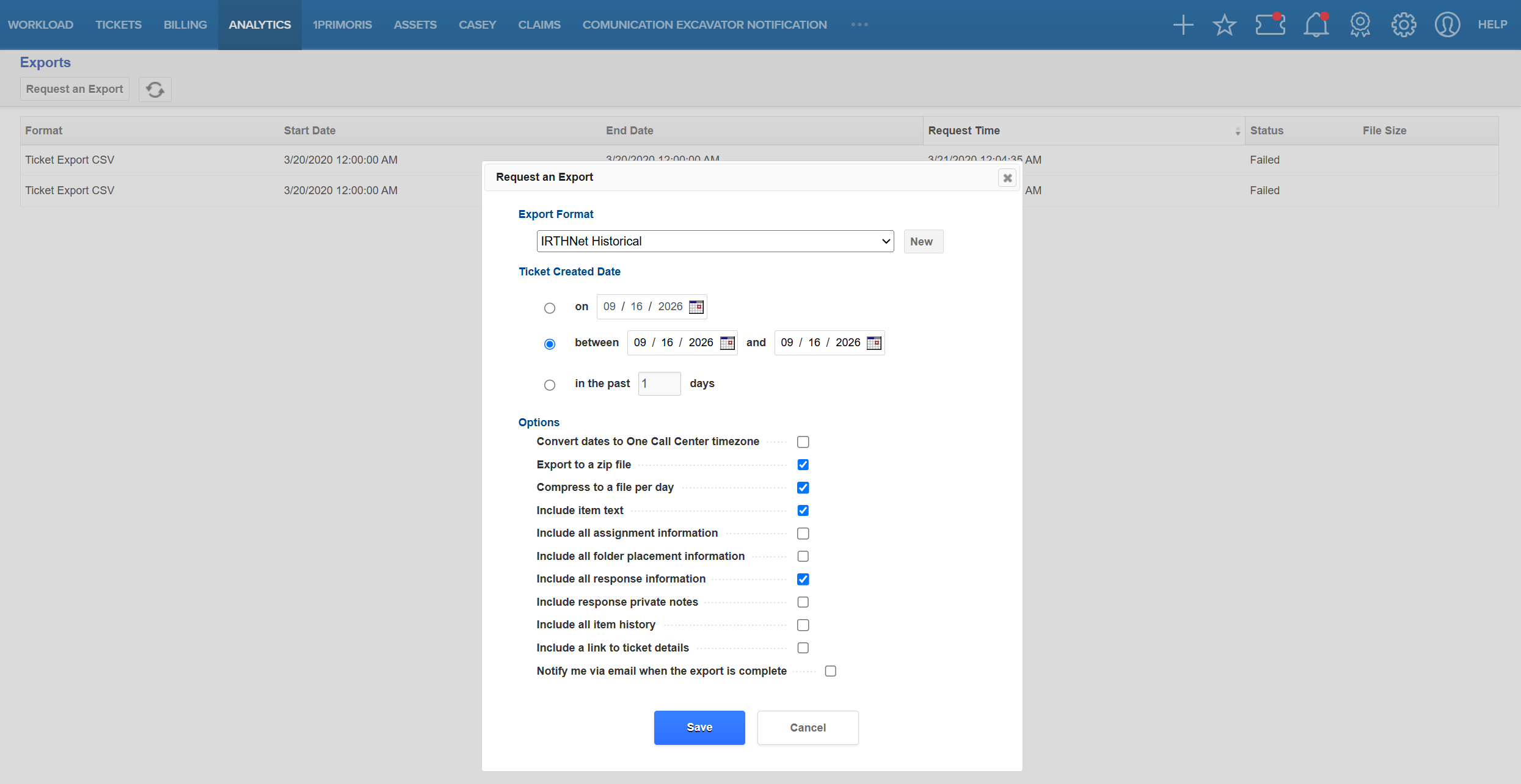
- Select Save to submit the export request.
- The export request will appear in the Exports list and may initially display a Queued status while the system processes the request.
- Monitor the export status. Once the status changes to Ready, locate the export in the list and select it to begin the download.

Open the downloaded file from your device's default download location.

| Note: Processing times vary depending on the amount of data included in the export. Large exports may take longer to complete. |
FAQ/Troubleshooting:
Q: Why can’t I access the Exports page?
A: Access may be restricted based on your assigned permissions or role. Contact your Utilisphere administrator if you believe you should have access.
Q: Why is my export still showing a Queued status?
A: The system is still processing the request. Larger exports may remain queued while the requested data is gathered and the file is created.
Q: Why can’t I download my export?
A: The download option becomes available after the export status changes to Ready. Confirm that processing is complete before attempting to download the file.
Q: What is the difference between a Standard export and a Historical export?
A: A Standard export retrieves data from the production system. A Historical export retrieves data from the data warehouse.
Q: Why don’t I see the export format I need?
A: Available formats may depend on your company’s configuration and system setup. Contact your Utilisphere administrator to verify which formats are available to your organization.
Q: Why are certain fields unavailable when I configure an export?
A: Available fields and configuration options may differ depending on the selected export format. Your permissions or company configuration may also affect which options are displayed.
Q: Why is some expected data missing from my export?
A: Review the filters and fields selected when the export was created. The exported file includes only the records and data elements that meet the configured criteria.
Q: Can I sort the exports displayed on the Exports page?
A: Yes. Select a column header to sort the table in ascending or descending order.
Questions? Contact us!

Was this article helpful?
That’s Great!
Thank you for your feedback
Sorry! We couldn't be helpful
Thank you for your feedback
Feedback sent
We appreciate your effort and will try to fix the article