Creating and Managing AI Project Rules
Purpose/Overview
In this article, company administrators learn how to create and manage AI Project Rules. This feature allows you to control which AI model is used when photos are uploaded to tickets by applying rules based on business context, such as folders, facility types, CDCs, customers, or a company-wide default. It is designed for company admins who want to use a single AI project in different ways across tickets, while ensuring the system consistently selects the most appropriate model using a clear priority order.
Navigation Path:
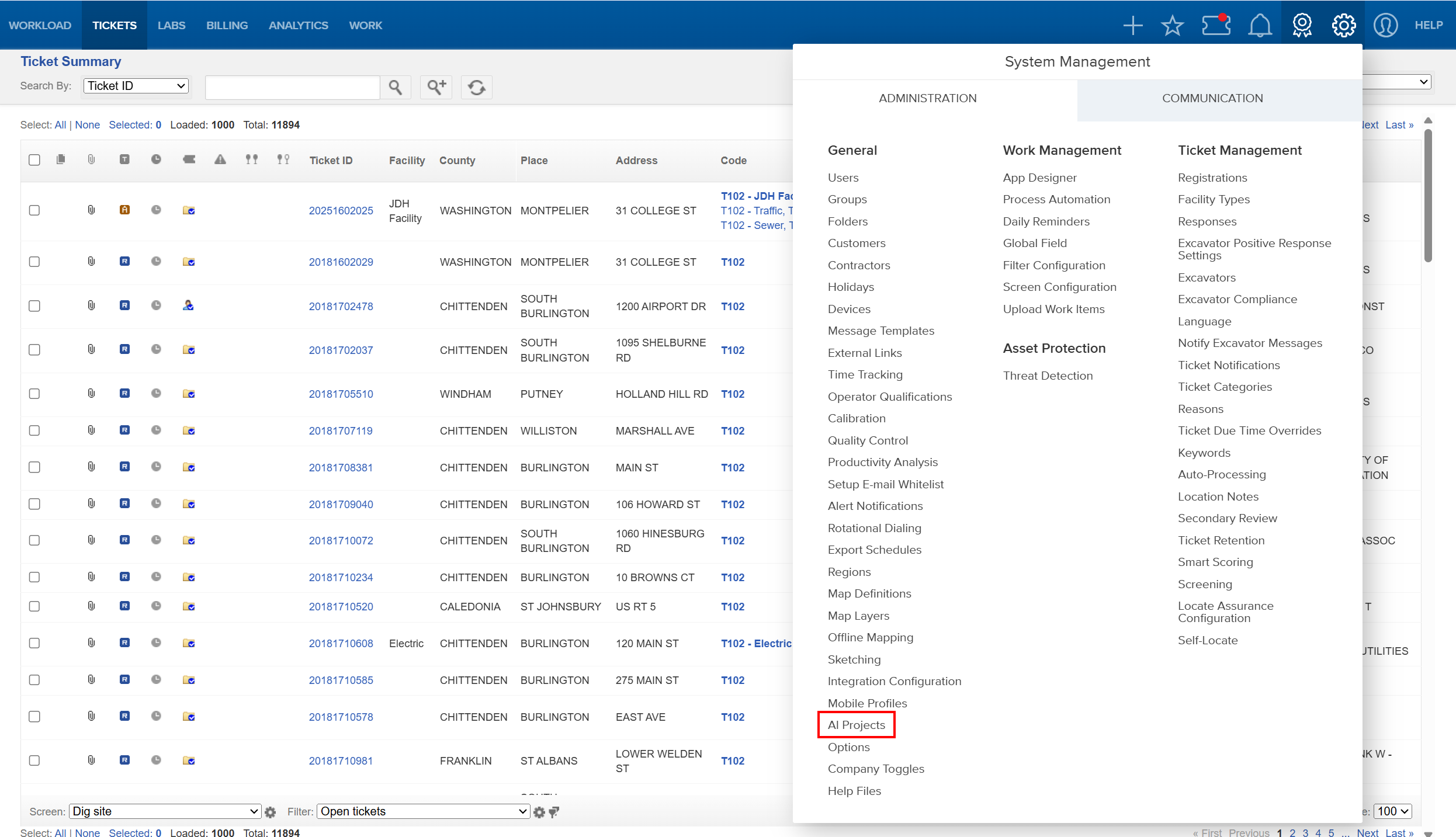
To access this feature: Utilisphere > System Management > Administration > General > AI Projects
Things to Know:
- Permissions: Only company Administrators can create and manage AI Project Rules.
- Ticket-Only Configuration: AI Project rules can only be configured for AI Projects associated with tickets.
- Non-Ticket AI Projects: AI Projects created for non-ticket forms will appear in the list, but cannot have rules configured. These projects automatically use the global default.
- One Company Default Rule: Each company can have only one company default AI Project Rule.
- Availability: Only AI Projects that have been enabled by a system admin are available for selection.
Key Benefits/Use Cases:
- Context-Aware AI Selection: Automatically apply different AI models or parameter configurations depending on where a ticket photo is uploaded or what metadata the ticket contains.
- Single AI Project, Multiple Behaviors: Reuse the same AI Project with different parameter values for folders, facility types, CDCs, or customers.
- Predictable Fallback Behavior: Ensure a consistent AI experience by defining a clear default rule when no other conditions apply.
How It Works:
Follow these steps to setup or enable:
- Go to AI Projects Administration > General > AI Projects.
- Select Add a Project Rule and enter a friendly rule name to help you recognize its purpose later.

- Choose one of the AI Projects configured for your company that is eligible for tickets.

- Select one of the following rule types: CDC, Company Default, Customer, Facility Type, or Folder.

- Based on the rule type selected, the system will prompt you to choose applicable values:
- Folder: Select one or more folders
- Facility Type: Select applicable facility types
- CDC: Select applicable CDCs
- Customer: Select a single customer (each customer can only have one rule)
- Company Default: No additional selection required
- Save your AI Project Rule.

Rule Priority Order
When a photo is uploaded to a ticket, the system evaluates rules in the following order and applies the first matching rule:
- Folder
- Facility Type
- CDC
- Customer
- Copmpany Default
If no rule applies, the system falls back to the global default AI Project.
FAQ/Troubleshooting:
Q: Why can’t I configure rules for some AI Projects?
A: Only AI Projects created for tickets support rule configuration. Non-ticket AI Projects always use the global default.
Q: Why don’t I see a customer or company default option?
A: Each customer and company can only have one rule of that type. If one already exists, it will not appear as an option.
Q: Which rule is applied if multiple rules could match a photo?
A: The system applies rules based on the priority order: Folder, Facility Type, CDC, Customer, then Company Default.
Questions? Contact us!

Was this article helpful?
That’s Great!
Thank you for your feedback
Sorry! We couldn't be helpful
Thank you for your feedback
Feedback sent
We appreciate your effort and will try to fix the article