Automatically Assign Registration Codes to Tickets
Purpose/Overview
In this article, you’ll learn how to configure rules that automatically add registration codes to incoming tickets.
Previously, registration codes could be added manually. With Auto Add Registration Codes, administrators can create rules that automatically add eligible registration codes when a ticket is received and meets the configured conditions.
This can help reduce manual updates and ensure the appropriate registration codes are added before other process automation rules are applied.
Navigation Path:
To access this feature: Utilisphere > System Management > Administration > Ticket Management > Registrations

Things to Know:
- Auto Add Registration Codes must be enabled before rules can automatically add registration codes.
- Registration codes must be enabled for use before they can be added manually or through an automatic rule.
- A registration code must belong to the same One Call Center as the ticket for it to be added.
- Rules can use the same types of conditions available for Smart Scoring.
- When a rule contains multiple conditions, the ticket must meet all conditions for the rule to apply.
- Auto Add Registration Code rules are evaluated when the ticket is received.
- Registration codes are added before Process Automation rules are processed.
- Users must have permission to access and modify registration codes to configure these rules.
Key Benefits/Use Cases:
Auto Add Registration Code rules can help you:
- Reduce the need to manually add registration codes to incoming tickets.
- Automatically apply codes based on information contained in the ticket.
- Create consistent registration code assignments using configurable rules.
- Add registration codes early enough in ticket processing for them to be available to subsequent Process Automation rules.
- Create rules based on different ticket information, such as email addresses, IDs, or ticket characteristics.
For example, you could create a rule that adds a specific registration code when an incoming ticket contains a particular contact email address.
How It Works:
Follow these steps to automatically assign registration codes to tickets:
Enable Auto Add Registration Codes
Reach out to your Irth Systems administrator and ask about enabling this feature.
Configure Your Rules
- Select Configure Auto Add Registration Code Rules.
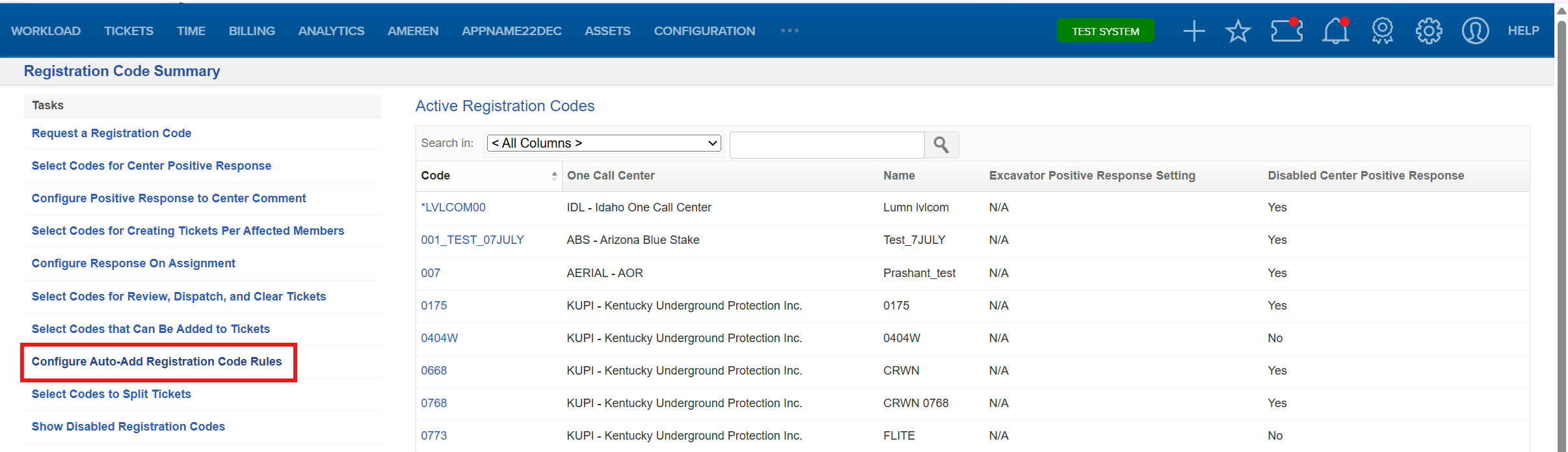
- The Auto Add Registration Code Rules page displays the rules that have been configured.
- Select Add New Rule to create a rule and select the registration code that should be added when the rule conditions are met.

- Configure the conditions that determine when the registration code should be added and Save your conditions.
Rules can use the same types of conditions available with Smart Scoring. For example, a rule could evaluate:
- Contact email
- An ID contained on the ticket
- Ticket characteristics, such as the type of work being performed
If you configure multiple conditions within a rule, all conditions must match for the registration code to be added.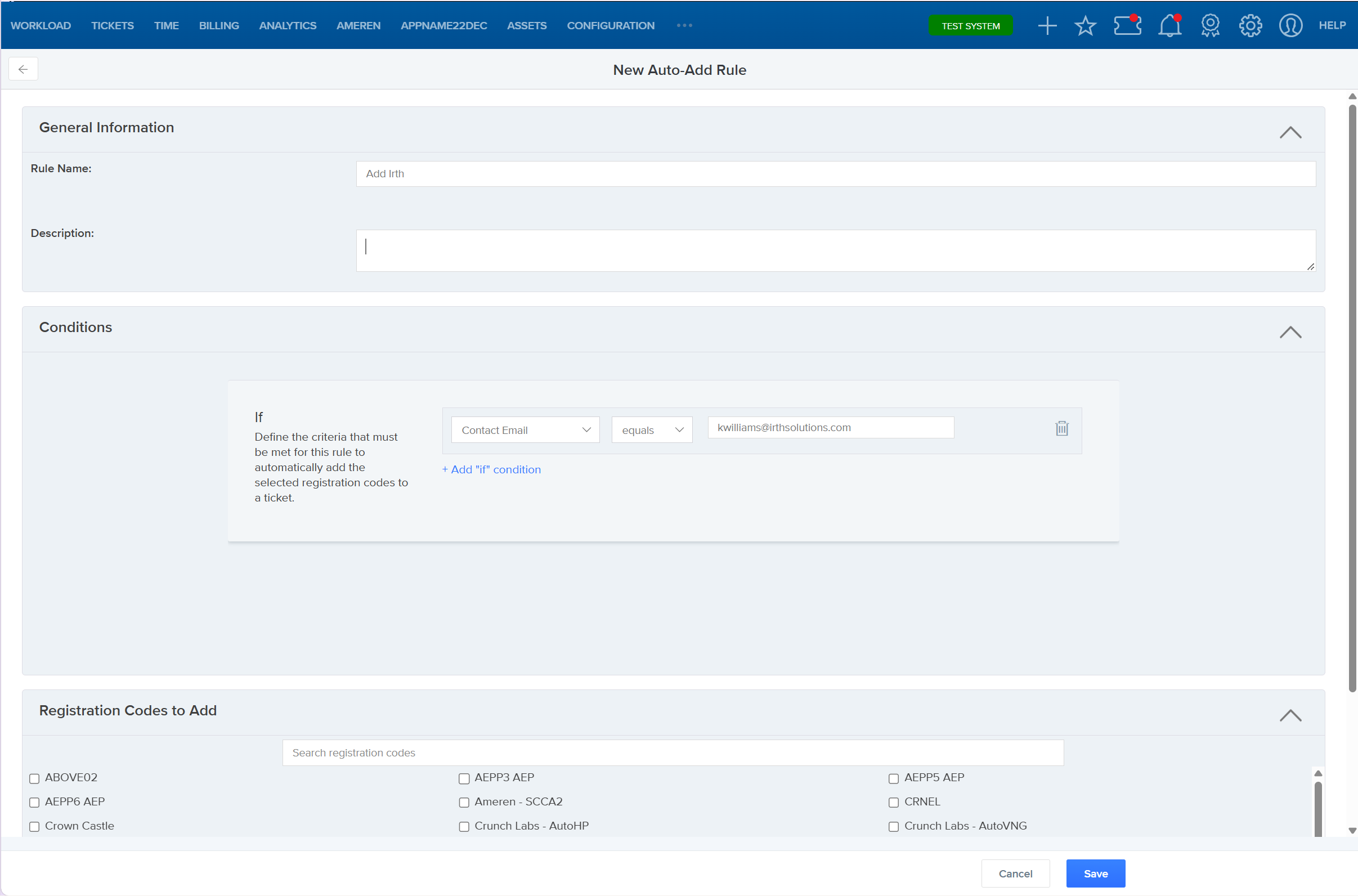
Process Incoming Tickets
When a ticket is received, the configured Auto Add Registration Code rules are evaluated.
If the ticket meets the rule conditions and the registration code belongs to the same One Call Center as the ticket, the registration code is automatically added.
Continue with Process Automation
After applicable registration codes are added, the ticket continues through Process Automation.
This means Process Automation rules can run after the applicable registration codes have been added to the ticket.
FAQ/Troubleshooting:
Q: Why isn't a registration code being automatically added?
A: Verify that:
- Auto Add Registration Codes is enabled.
- The registration code has been enabled for use with tickets.
- The ticket meets all conditions configured in the rule.
- The registration code and ticket are associated with the same One Call Center.
Q: When are Auto Add Registration Code rules evaluated?
A: The rules are evaluated when the ticket is received.
Q: Do these rules run before or after Process Automation?
A: Auto Add Registration Code rules are processed before Process Automation rules.
Q: Can I use multiple conditions in a rule?
A: Yes. However, when multiple conditions are configured, the ticket must meet every condition for the rule to apply.
Q: Who can configure Auto Add Registration Code rules?
A: Users must have access to the registration code configuration and permission to modify registration codes.
Q: Can registration codes still be added manually?
A: Yes. The existing manual process for adding eligible registration codes remains available.
Questions? Contact us!

Was this article helpful?
That’s Great!
Thank you for your feedback
Sorry! We couldn't be helpful
Thank you for your feedback
Feedback sent
We appreciate your effort and will try to fix the article