Device Configuration
Purpose/Overview
In this article, you’ll learn how to configure Fax Devices and Web Request Devices in Utilisphere. These features allow tickets to be sent to external destinations, either via fax or through web-based integrations such as APIs and webhooks.
This functionality solves the challenge of sharing ticket data with external partners or systems, reducing manual effort and ensuring timely communication. It’s intended for administrators and operations teams who manage external ticket delivery workflows.
Navigation Path:
To access this feature go to: Utilisphere > System Management > Administration > General > Devices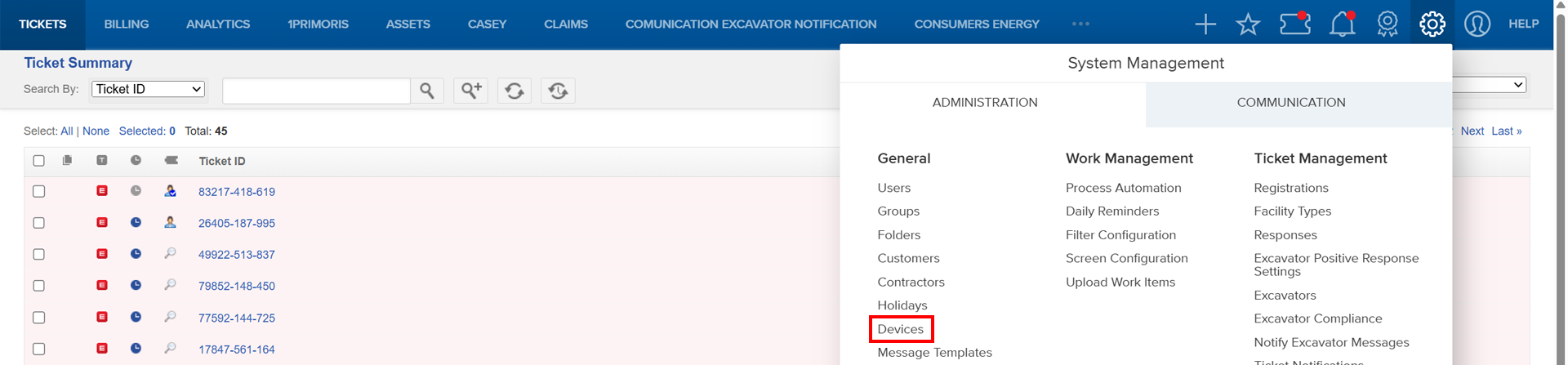
Things to Know:
Permissions: Requires administrative access to System Management > Administration > General > Devices.
Known Limitations:
- Fax devices rely on correct phone numbers and port speed settings.
- Web request devices require accurate URLs and authentication details for successful data transmission.
Key Benefits/Use Cases:
Automate ticket delivery to external contractors via fax for compliance and timely action.
Integrate with external systems using Webhooks or APIs for real-time ticket updates.
Reduce manual intervention by queuing and sending tickets automatically based on defined thresholds.
How It Works:
Follow these steps to set up or enable this feature:
Add or Modify a Fax Device
- Navigate to System Management > Administration > General > Devices.
- Click Go to Fax Device Summary on the Device Overview screen.

- To add: Click Add a Fax Device.

- Fill out the Add a Fax Device form and click Add.
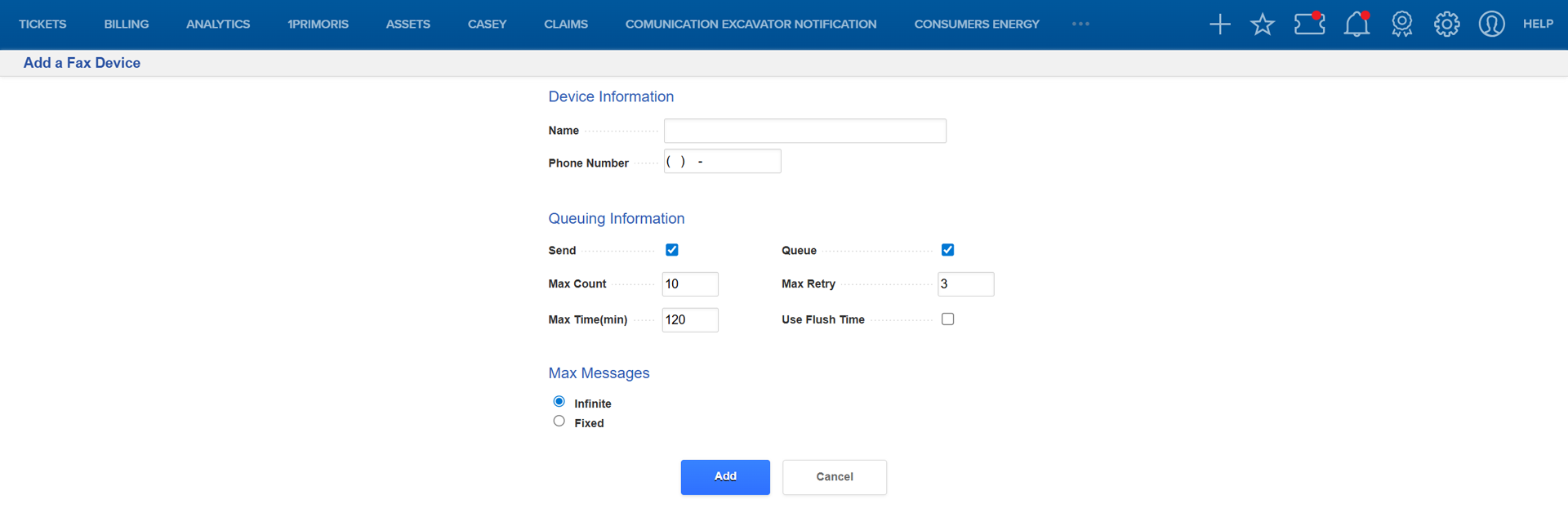
- Device Information: Name, Phone Number
- Queuing Information: Send/Queue options, Max Count, Max Retry, Max Time, Flush Time
- Max Messages: Fixed or Infinite
NOTE: To modify a fax device, select the device name from the Fax Device Summary screen, then click Modify this Device. Update the necessary fields as described in the steps above, and click Save to apply your changes. |
Fax Header Settings:
- From Fax Device Summary, select View Fax Header Settings.

- Click Modify these Settings and enter your Preferred Company Name and Fax Header Number, then click Save.

Add or Modify a Web Request Device
- Click Go to Web Request Device Summary from the Device Overview screen.

- Click Add a Web Request Device.

- Fill out the Add a Web Request Device form and click Add.
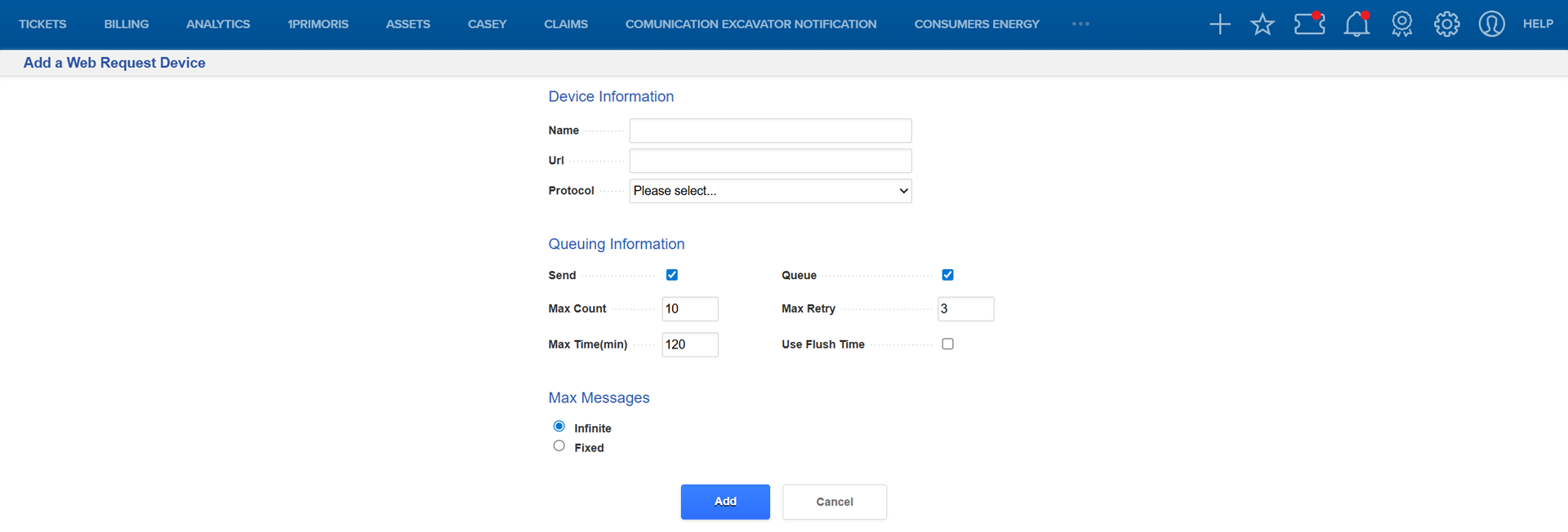
- Device Information: Name, URL, Protocol (IRTHNet Ticket, Webhook, Response to IRTHNet v1, Response to Digtix )
- Queuing Information: Send/Queue options, Max Count, Max Retry, Max Time, Flush Time
- Max Messages: Fixed or Infinite
NOTE: To modify a web request device, select the device name from the Fax Header Settings screen, then click Modify these Settings. Update the necessary fields as described in the steps above, and click Save to apply your changes. |
Related Features/Next Steps:
FAQ/Troubleshooting:
Q: Why aren’t my tickets being sent?
A: Check Queue and Send settings. If Queue is unchecked, tickets won’t be added to the queue.
Q: What happens if sending fails?
A: The system retries based on the Max Retry setting. Review Transmission History under System Management > Communication > Transmission > History.
Questions? Contact us!

Was this article helpful?
That’s Great!
Thank you for your feedback
Sorry! We couldn't be helpful
Thank you for your feedback
Feedback sent
We appreciate your effort and will try to fix the article