Smart Scoring: Ticket Warning Statements
Purpose/Overview
In this article, you’ll learn how to configure Smart Scoring to apply warning statements to tickets when specified conditions are met, so that techs and other users can quickly see important risk or handling notes directly in Ticket Details. This feature is designed for Company Admins who need to create or adjust warning logic using existing Smart Score “If” criteria.
Navigation Path:
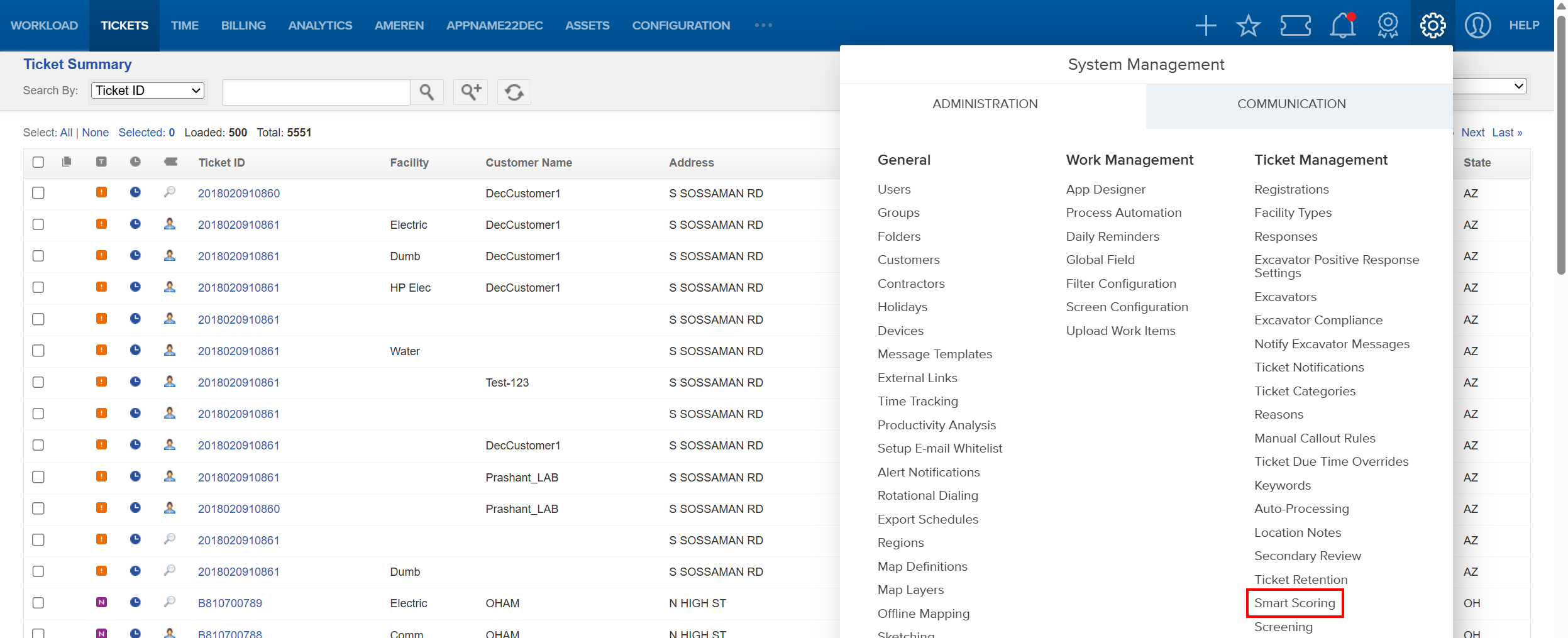
To access this feature: Utilisphere > System Management > Administration > Ticket Management > Smart Scoring
Things to Know:
- Permissions: Warning configuration is intended for the Company Admin.
- Platform support: Designed to display in Full Web, Mobile Web, Desktop, and Legacy Android.
- Combined tickets behavior: If a warning applies to any ticket in a combined set, it will show on the combined ticket; duplicates are shown only once, even if multiple tickets share the same warning.
- Recalculation behavior: When Smart Scores are recalculated, warning applicability is re-evaluated; if the criteria are no longer true, the warning is removed.
- Disconnected apps: Disconnected applications may require a sync before showing newly applied warnings since the last sync.
Key Benefits/Use Cases:
- Risk callouts for field awareness: Apply a visible warning (e.g., “Excavator has frequent damages”) when certain ticket properties match your criteria, helping locators take extra precautions and reducing incident risk.
- Consistent warnings across combined tickets: Ensure critical warnings remain visible even when users view combined tickets, preventing important context from being missed.
How It Works:
Follow these steps to set up or enable:
- Reach out to your System Administrator to enable warnings if they haven't already been enabled.
- Go to System Management > Administration > Ticket Management > Smart Scoring and select Create New Score or open an existing Smart Score for modification.

- Use your standard Smart Score criteria to define when a warning should apply (for example, based on ticket custom properties).
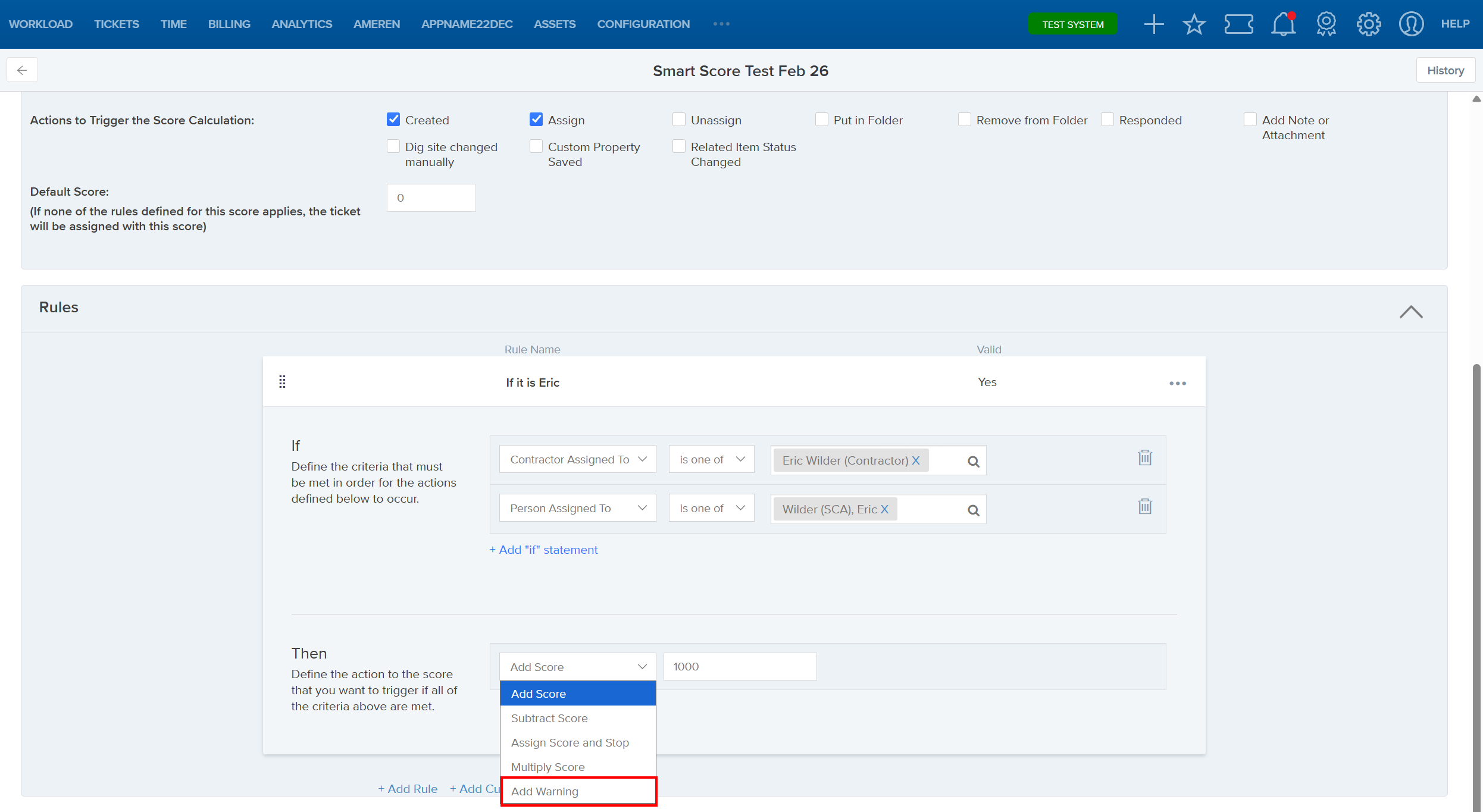
- In the rule’s Then operations, select Add Warning.
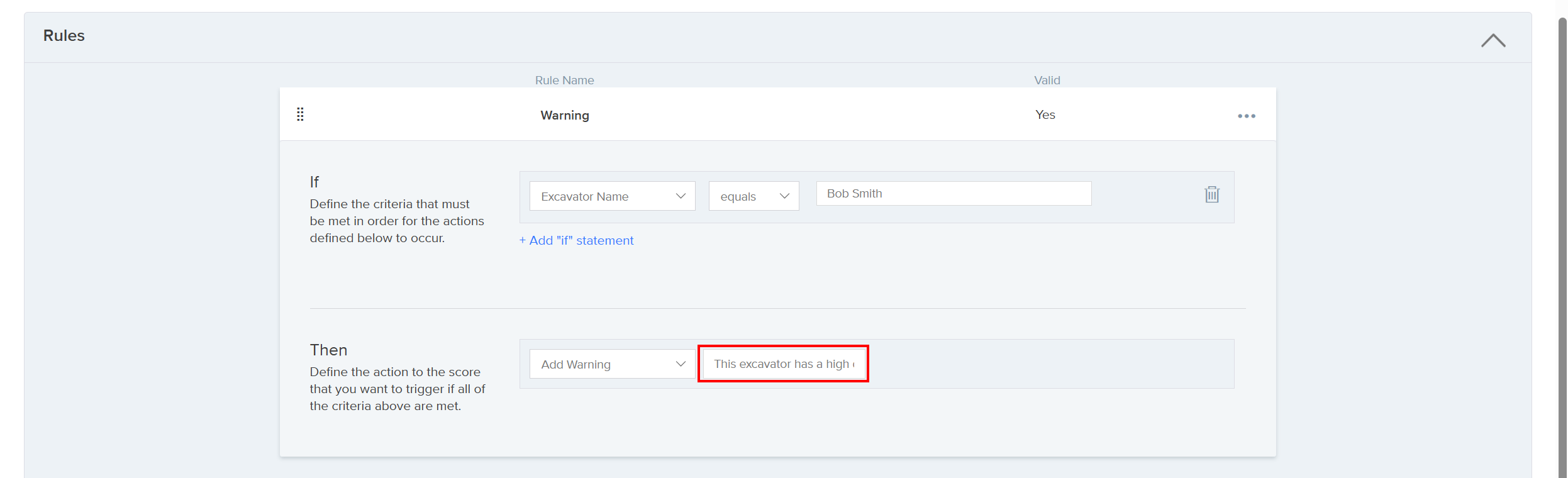
- Provide the warning text in the required free-text field; this is what users will see on the ticket.
- Click Save and Activate at the bottom of the screen.

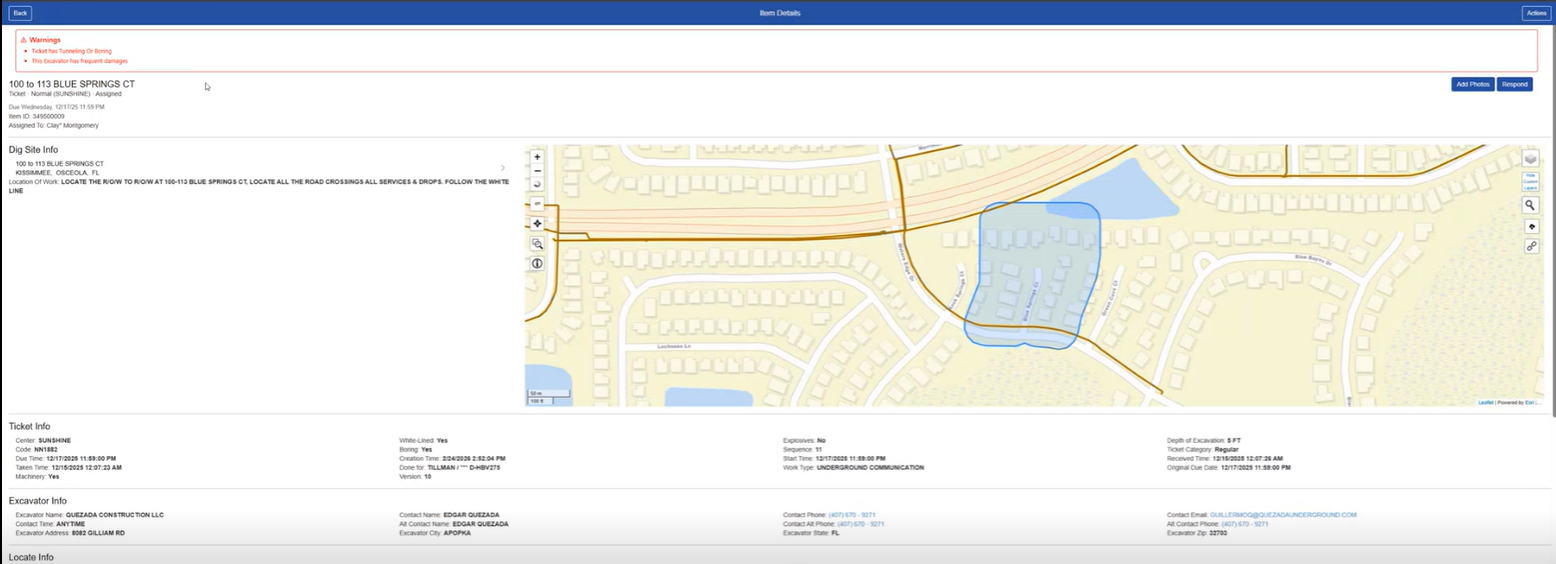
- When the Smart Score is calculated, and the rule evaluates True, the warning appears in a block at the top of Ticket Details, with each warning on its own line.
FAQ/Troubleshooting:
Q: I configured a warning, but it’s not showing on the ticket. Why?
A: Warnings only display when a Smart Score is calculated, and the rule evaluates True. If your app is disconnected, it may also require a sync to display warnings applied since the last sync.
Q: Why did a warning disappear after it previously showed up?
A: When Smart Scores are recalculated, warning applicability is re-determined. If the criteria are no longer true after recalculation, the warning no longer applies and will be removed from the ticket display.
Q: Will warnings show on combined tickets?
A: Yes. If a warning applies to at least one ticket in a combination, it will be displayed on the combined ticket. If the same warning applies to multiple tickets in the combination, it will display only once.
Questions? Contact us!

Was this article helpful?
That’s Great!
Thank you for your feedback
Sorry! We couldn't be helpful
Thank you for your feedback
Feedback sent
We appreciate your effort and will try to fix the article